5 Ways to Cut Your Tech Spending by 50%
Discover proven strategies to slash your technology expenses in half without sacrificing quality, performance, or the devices you need.
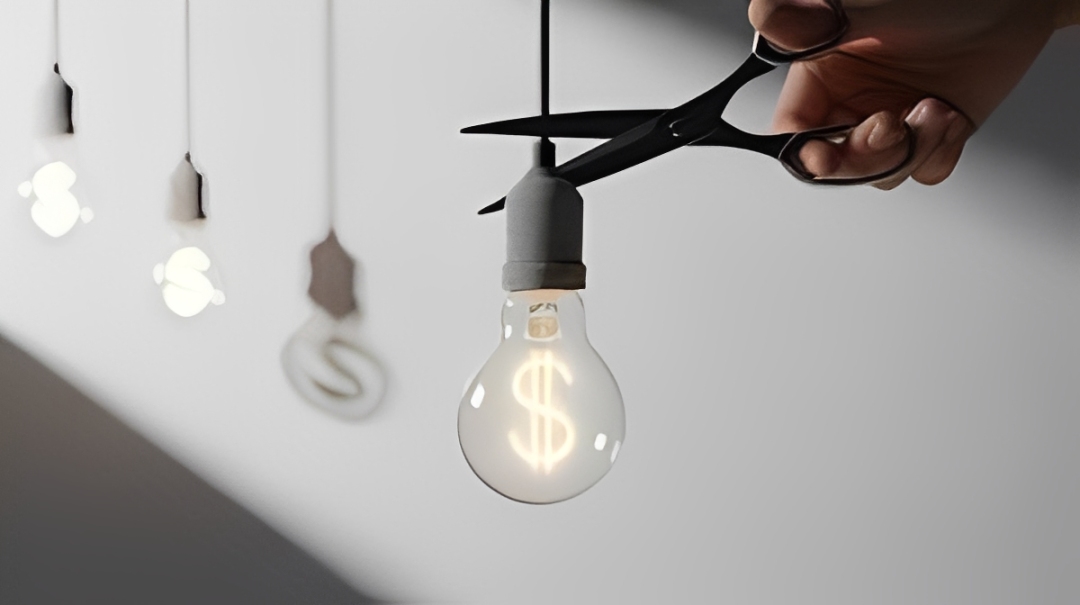
The average American household now spends over $2,000 annually on technology products and services—and that number continues to climb. Between smartphones, laptops, streaming subscriptions, software licenses, and accessories, tech spending can quickly spiral out of control. But here's the good news: you can cut your tech expenses by 50% or more without downgrading your digital lifestyle. This comprehensive guide reveals five powerful strategies that have helped thousands of people dramatically reduce their tech costs while maintaining—or even improving—their technology experience.
Why Tech Spending Keeps Growing (And How to Stop It)
Before we dive into the solutions, it's crucial to understand why tech spending has become such a financial burden for so many households. The technology industry has mastered the art of creating perceived urgency around upgrades and subscriptions.
The main culprits driving excessive tech spending:
- Planned obsolescence: Devices designed with limited lifespans to force upgrades
- Subscription creep: Monthly services that seem small but add up to thousands annually
- Marketing hype: Aggressive campaigns making every new release feel essential
- Feature bloat: Paying premium prices for features you'll never use
- Impulse purchases: Easy one-click buying making it too simple to overspend
According to recent consumer research, 67% of tech purchases are emotional rather than needs-based. That's why implementing systematic strategies to control tech spending is so critical.
Strategy 1: Buy Refurbished Instead of New
Potential Savings: 40-70% per device
Difficulty: Easy
This is the single most effective way to slash tech spending immediately. Refurbished devices offer virtually identical performance to brand-new products at a fraction of the cost. A refurbished device is typically a returned item that's been professionally restored, tested, and certified to work like new.
Real-World Example:
A brand-new MacBook Air M2 retails for $1,199. A certified refurbished model with identical specs? $699-799. That's $400-500 in savings for a device that functions identically and includes a warranty.
What to Buy Refurbished:
- Laptops and computers: Massive savings with minimal risk
- Smartphones: 1-2 year old flagship models at budget prices
- Tablets: Especially iPads, which maintain excellent quality
- Monitors: No moving parts means extremely reliable
- Gaming consoles: Same gaming experience at 30-50% off
Where to Buy Safely:
- Apple Certified Refurbished (1-year warranty, looks brand new)
- Amazon Renewed (tested by Amazon-qualified suppliers)
- Best Buy Outlet (Geek Squad certified)
- Manufacturer outlets (Dell, HP, Lenovo official stores)
- Reputable third-party retailers with solid return policies
Quality Indicators to Look For:
Always choose "Grade A" or "Excellent" condition refurbished items. These typically show no signs of previous use and include original accessories. Avoid "Grade C" or "Fair" condition unless you're comfortable with cosmetic imperfections.
Success Story: The Smith Family
"We needed to upgrade three family laptops and two phones. By choosing refurbished instead of new, we spent $2,100 instead of $4,800. The devices work perfectly, and the one-year warranties give us peace of mind. We saved $2,700 in one shopping trip." - Jennifer S., Portland
Strategy 2: Audit and Eliminate Subscription Waste
Potential Savings: $500-1,500 annually
Difficulty: Easy (takes 2 hours once)
Tech subscriptions are designed to be forgettable—small monthly charges that slip under your awareness radar. But they accumulate into staggering annual costs. The average household now pays for 12+ subscriptions, spending $273/month or $3,276/year.
How to Conduct a Subscription Audit:
- Review 3 months of bank/credit card statements - Identify every recurring charge
- List all subscriptions with costs - Create a spreadsheet tracking everything
- Calculate annual costs - Monthly fees × 12 reveals the true expense
- Rate each by usage - Haven't used it in 30 days? Cancel it
- Cancel immediately - Don't wait until "next month"
Common Tech Subscriptions to Evaluate:
- Streaming services: Netflix ($15.49), Hulu ($17.99), Disney+ ($13.99), Max ($16.99), Apple TV+ ($9.99)
- Music/Audio: Spotify ($11.99), Apple Music ($10.99), Audible ($14.95)
- Cloud storage: iCloud+ ($9.99), Google One ($9.99), Dropbox ($11.99)
- Software: Adobe Creative Cloud ($54.99), Microsoft 365 ($6.99-69.99)
- Productivity: Notion Plus ($10), Evernote ($14.99), Grammarly ($12)
- Security: VPN services ($5-13), password managers ($3-5), antivirus ($5-10)
Smart Alternatives That Save Money:
- Streaming: Rotate services monthly instead of maintaining all year-round. Subscribe to Netflix for a month, binge your shows, cancel, then switch to Max the next month. Saves: $100-150/year per service
- Cloud storage: Use the free tiers (Google Drive: 15GB, iCloud: 5GB) and delete old files instead of paying for upgrades. Saves: $120/year
- Music: Use free Spotify with ads or YouTube Music free tier. Saves: $144/year
- Software: Switch to free alternatives like Google Docs (instead of Microsoft Office) or GIMP (instead of Photoshop). Saves: $100-660/year
- Security: Use built-in password managers (iCloud Keychain, Chrome) and free antivirus (Windows Defender is excellent). Saves: $60-100/year
The "Annual Prepay" Strategy:
For subscriptions you must keep, prepaying annually saves 15-20% compared to monthly billing. For example, Spotify Premium costs $143.88 annually if paid monthly, but $99.99 if prepaid—a $44 savings.
Strategy 3: Extend Device Lifecycles Through Maintenance & Upgrades
Potential Savings: $300-800 per device
Difficulty: Moderate
Tech companies want you to upgrade every 1-2 years, but most devices can perform excellently for 5-7 years with proper care and strategic upgrades. Instead of buying a new $1,200 laptop, spend $150 on upgrades to extend its life by 3 more years.
High-Impact, Low-Cost Upgrades:
Upgrade RAM (Memory)
Cost: $30-80 | Impact: Massive speed improvement for multitasking
If your computer has 4GB or 8GB of RAM, upgrading to 16GB makes it feel brand new. This single upgrade extends usable life by 2-3 years.
Replace HDD with SSD
Cost: $40-100 | Impact: 5-10x faster boot and load times
Replacing an old hard drive with a solid-state drive (SSD) is the most dramatic performance upgrade possible. Your 5-year-old laptop will boot in 10 seconds instead of 2 minutes.
Replace Smartphone Battery
Cost: $49-89 | Impact: Extends phone life by 1-2 years
If your phone battery drains quickly but otherwise works fine, a battery replacement is 10x cheaper than buying a new phone.
Clean and Optimize Software
Cost: Free | Impact: Moderate performance boost
Uninstall bloatware, clear caches, update drivers, and reset devices to factory settings annually. This free maintenance often solves "slow device" problems.
Proper Device Care Extends Lifespan:
- Use protective cases: $15-30 case prevents $300 repair costs
- Keep devices cool: Heat degrades components faster—use laptop cooling pads
- Update software regularly: Security patches and performance improvements
- Avoid overcharging: Unplug devices at 80-90% to preserve battery health
- Clean regularly: Dust accumulation causes overheating and hardware failure
When to Upgrade vs. Replace:
Upgrade if: The core functionality works, you just need better performance. Replace if: Hardware is failing (screen, keyboard, ports) or device is 7+ years old.
Strategy 4: Buy Last Generation Flagship Instead of Current Budget Models
Potential Savings: $200-400 per device
Difficulty: Easy
Here's a counterintuitive money-saving strategy most people miss: Last year's flagship model often costs the same (or less) than this year's mid-range model—but delivers significantly better quality, features, and longevity.
The Flagship vs. Budget Comparison:
Example: Smartphones
- 2025 Mid-Range Phone: iPhone 15 / Samsung Galaxy A54
Price: $799 | Plastic build, decent camera, 6GB RAM, 2-3 year software support - 2023-2024 Flagship Phone: iPhone 14 Pro / Samsung Galaxy S23+
Price: $699-799 (refurbished) | Premium materials, pro-level cameras, 8-12GB RAM, 4-5 year software support
Result: Same or lower price, but you get a premium device that will last longer and perform better.
Why This Works:
- Flagship devices have better build quality (metal/glass vs. plastic)
- Superior cameras, displays, and processors
- Longer software update support
- Better resale value when you eventually upgrade
- Premium features (wireless charging, water resistance, better screens)
Best Times to Buy Last-Gen Flagships:
- Right after new model announcement: Previous gen drops 20-30% immediately
- Black Friday / Cyber Monday: Stack discounts with price drops
- Back to school sales: August-September for laptops and tablets
- Prime Day / similar events: July for big online retailer sales
Which Products This Strategy Works Best For:
- Smartphones (especially iPhones and Samsung Galaxy S-series)
- Laptops (particularly MacBooks and business-class ThinkPads)
- Tablets (iPads maintain value and performance)
- Cameras and photo equipment
- Gaming consoles (when new generation releases)
Strategy 5: Master the Art of Strategic Timing
Potential Savings: 15-40% on every purchase
Difficulty: Easy (just requires patience)
Buying tech at the wrong time can cost you hundreds of dollars unnecessarily. The same laptop that costs $1,299 in September might be $899 on Black Friday. Strategic timing alone can cut tech spending by 15-40% without any other changes.
The Annual Tech Sales Calendar:
January (Post-Holiday Sales)
TVs, tablets, smart home devices | Savings: 20-35%
February (Presidents Day)
Laptops, appliances | Savings: 15-25%
May (Memorial Day)
General electronics | Savings: 10-20%
July (Amazon Prime Day)
Amazon devices, various tech | Savings: 20-50%
August-September (Back to School)
Laptops, tablets, software | Savings: 15-30%
November (Black Friday/Cyber Monday)
Everything tech-related | Savings: 25-60%
December (Post-Christmas)
Previous year models clearance | Savings: 30-50%
Product Launch Timing Strategy:
Tech products follow predictable release cycles. Buy the outgoing model when the new one launches:
- iPhones: Released in September—buy previous gen in October
- Samsung Galaxy: Released in February—buy previous gen in March
- MacBooks: Released sporadically—watch for WWDC (June) and fall events
- Gaming consoles: Holiday releases—buy in January
- Tablets: iPad releases in October—buy previous gen after announcement
Price Tracking Tools to Use:
- CamelCamelCamel: Tracks Amazon price history and alerts
- Honey: Browser extension finds coupon codes automatically
- Slickdeals: Community-driven deal alerts
- Google Shopping: Compare prices across retailers instantly
- Keepa: Advanced Amazon price tracking with graphs
The "Need vs. Want" 30-Day Rule:
Before any tech purchase over $100, wait 30 days. If you still want it after a month, buy it during the next major sale. This simple rule eliminates impulse purchases and ensures you only buy what you truly need at the best possible price.
Real-World Example: Cutting a Family's Tech Budget in Half
The Martinez Family Tech Budget Transformation
Before (Annual Tech Spending): $4,980
- • New iPhone: $1,200
- • New laptop: $1,400
- • Streaming subscriptions: $780/year
- • Software subscriptions: $600/year
- • Cloud storage: $240/year
- • Various accessories: $760
After (Annual Tech Spending): $2,440
- • Refurbished iPhone 14 Pro: $650 (saved $550)
- • Refurbished MacBook Air: $799 (saved $601)
- • Streaming subscriptions (rotated): $240/year (saved $540)
- • Free software alternatives: $0/year (saved $600)
- • Free cloud tier + cleanup: $0/year (saved $240)
- • Timed accessory purchases: $350 (saved $410)
- • Battery replacement instead of new phone: $89 (extended life 2 years)
Total Annual Savings: $2,540 (51% reduction)
"We thought we'd have to sacrifice quality, but the refurbished devices work perfectly, and we honestly don't miss the subscriptions we cancelled. That's an extra $200/month we're now putting toward our emergency fund." - Carlos M.
Common Mistakes That Prevent Saving Money on Tech
Buying Extended Warranties
Store warranties are overpriced insurance products with high profit margins. Manufacturer warranties plus credit card purchase protection typically covers you adequately.
Overpaying for Brand Names
Lesser-known brands often offer identical specs at 30-50% lower prices. Research reviews instead of blindly buying popular brands.
Buying Maximum Storage Tiers
The 512GB iPhone costs $200 more than 128GB, but cloud storage costs $12/year. Buy base storage and use cloud—save $188 upfront.
Upgrading on Auto-Pilot
Carrier "upgrade programs" cost you more in the long run. Buy your phones outright (especially refurbished) and use them for 3-4 years.
Action Plan: Implement These Strategies This Week
Your 7-Day Tech Savings Challenge
Day 1-2: Subscription Audit
Review statements, list all subscriptions, cancel unused ones
Day 3: Device Assessment
Evaluate current devices—what needs upgrading vs. replacing?
Day 4: Research Refurbished Options
Browse certified refurbished sites, compare prices to new
Day 5: Install Price Tracking Tools
Set up CamelCamelCamel alerts for items you need
Day 6: Maintenance Day
Clean devices, update software, uninstall bloatware
Day 7: Create Your Tech Budget
Set annual limits for devices, subscriptions, and accessories
Conclusion: Quality Tech on Half the Budget
Cutting your tech spending by 50% doesn't mean settling for inferior products or living in the digital stone age. By strategically buying refurbished devices, eliminating subscription waste, extending device lifecycles, choosing last-generation flagships, and timing purchases strategically, you can maintain—or even upgrade—your technology experience while saving thousands annually.
The key is shifting from emotional, impulse-driven tech purchases to strategic, value-focused decisions. Start with one strategy this week—conduct your subscription audit or browse refurbished options for your next device. As you see the savings accumulate, you'll naturally adopt more of these money-saving habits.
Remember: The tech industry profits when you overspend. Take control of your tech budget, and redirect those savings toward things that truly improve your life—whether that's building an emergency fund, investing, or pursuing experiences over endless gadget upgrades.
Ready to Save on Your Next Tech Purchase?
Browse our collection of certified refurbished laptops, smartphones, and tablets—all tested, warrantied, and priced at 40-70% off retail. Start cutting your tech spending today.
Shop Refurbished Tech →Frequently Asked Questions
Is refurbished tech really as good as new?
Yes, when purchased from reputable sources. Certified refurbished devices undergo rigorous testing, repairs if needed, and often come with warranties matching new products. The main difference is packaging—the device itself functions identically to new.
How much can I realistically save by cutting tech spending?
Most households can reduce tech spending by 40-60% without sacrificing quality. A family spending $4,000 annually on tech can typically reduce that to $1,600-2,400 by implementing these five strategies. Individual results vary based on current spending habits.
What's the biggest tech expense most people overlook?
Subscriptions. The average household now spends $273/month ($3,276/year) on subscriptions, with many being forgotten services no longer used. A thorough subscription audit typically reveals $500-1,200 in annual savings opportunities.
Should I upgrade my current device or buy a new/refurbished one?
Upgrade if the device is less than 5 years old and the core components work. A $150 SSD and RAM upgrade can extend a laptop's life by 3+ years. Replace if the device is 7+ years old or has hardware failures (broken screen, failing motherboard).
Are cheap tech accessories worth buying, or should I pay more?
It depends on the item. For cables, screen protectors, and cases, reputable budget brands ($10-20) work fine. For chargers and batteries, invest in quality to avoid safety risks. Read reviews and avoid suspiciously cheap items from unknown brands.
How often should I replace my tech devices?
Smartphones: 3-4 years | Laptops: 5-7 years | Tablets: 4-6 years | Desktops: 7-10 years. These timelines assume proper maintenance and strategic upgrades. Replace when the device can't run necessary software or has hardware failures.
What's the best time of year to buy tech?
Black Friday/Cyber Monday (November) offers the deepest discounts across all categories. Second best: Post-Christmas clearances (late December/January) and Amazon Prime Day (July). For specific products, buy right after new model launches to save 20-30% on previous generation.
Can I trust refurbished devices with my data and security?
Yes, from reputable sellers. Certified refurbished devices are factory reset and thoroughly cleaned. When you receive it, perform your own factory reset for peace of mind, then set it up as new. Security is identical to new devices when running current software updates.